Buying a challenge
Choose an evaluation, pay once in crypto, track the payment, and get a simulated account on live prices.
A challenge is how you start trading on Perps Fund. You pay a one-time fee and get a simulated account priced on the live market, with a profit target to hit and risk limits to respect. Pass it and you move to a funded account that pays you a share of the profit.
This page is the purchase walkthrough. For the full model, from buying to getting paid, see How it works.
The page
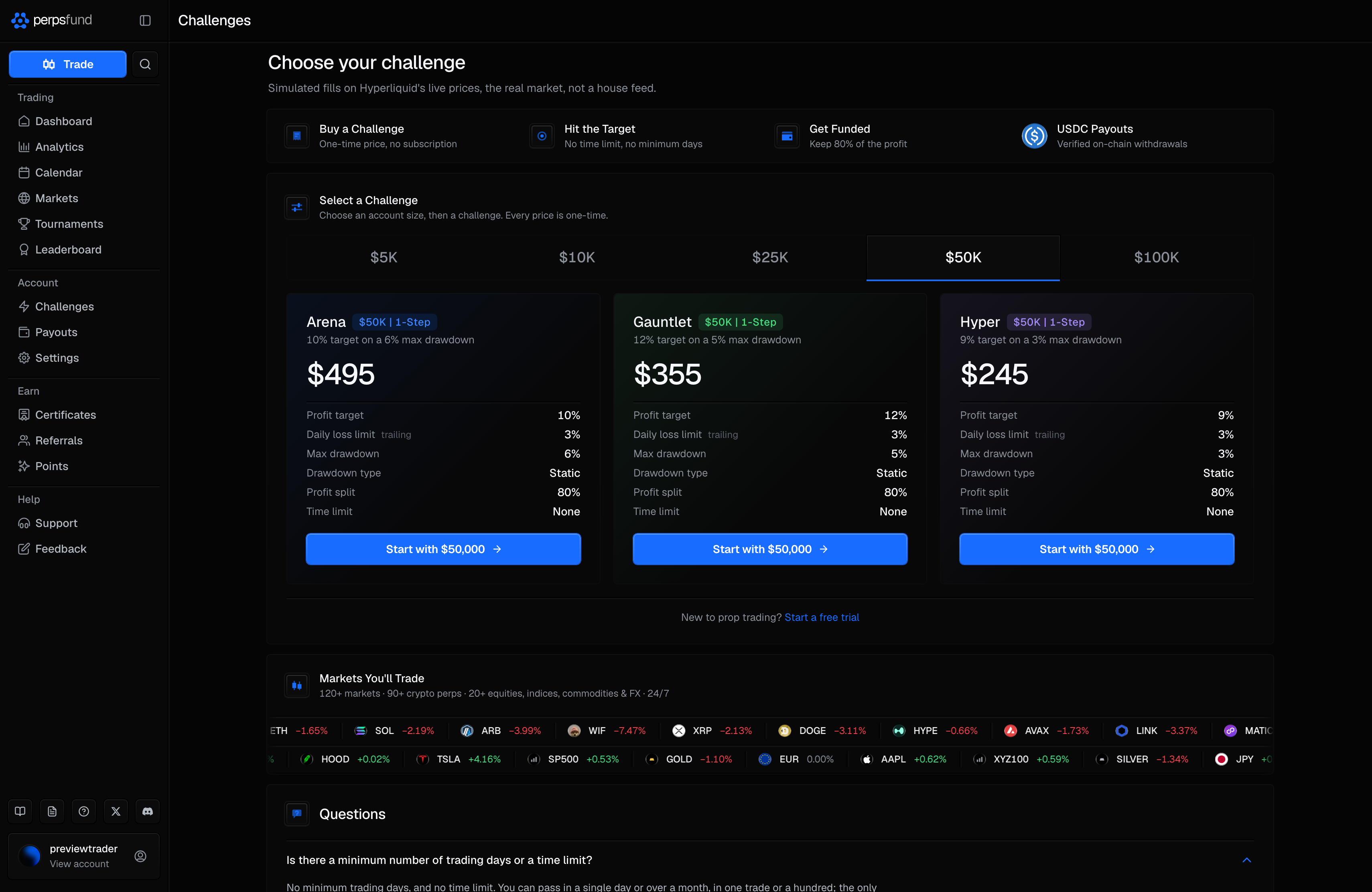
Challenges reads top to bottom. On a computer the bar across the top reads Challenges, and the page opens with Choose your challenge and the line under it.
| Section | What it is |
|---|---|
| How it works | Four steps: Buy a Challenge, Hit the Target, Get Funded, USDC Payouts. The whole model in one line each. The fourth reads Verified on-chain withdrawals: a payout is checked on-chain before it is marked paid, and a paid row on Payouts links to the transaction. |
| Select a Challenge | The purchase. An account-size row, then one card per challenge on sale, then the button that opens the checkout. |
| Markets You'll Trade | The markets on your account, with their live 24-hour move: crypto perpetuals on one line, equities, commodities, FX and indices on the other. The count is the enabled roster, 140+ markets. |
| Questions | Five of the FAQ's own answers, the ones this page raises. They are the same answers, not a second version of them. |
Choose a challenge
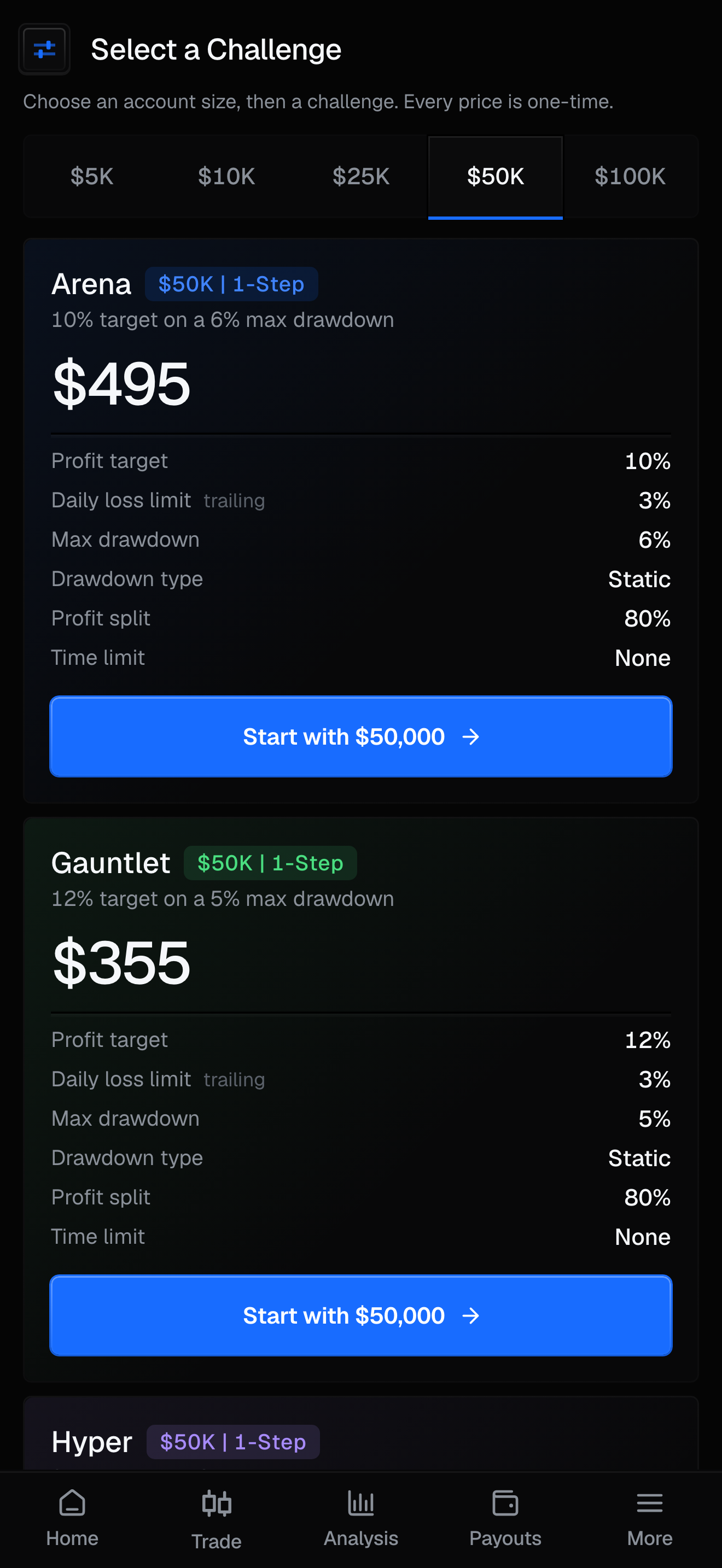
You pick two things, in this order: an account size and a challenge.
| Choice | What it means |
|---|---|
| Account size | The row of tabs at the top of the panel, from $5K to $100K. The size is the simulated capital you trade. A bigger account costs more and pays out on a bigger base. Picking a size re-prices every card, and each card's badge and button follow it. |
| Challenge | One card per challenge on sale, 3 in all (Arena | 1-Step, Gauntlet | 1-Step, and Hyper | 1-Step). Each card names its mechanic and the size you chose, then its one-time price and its six terms. |
Every card carries the same six terms, in the same order, so you can read across the three: Profit target, Daily loss limit, Max drawdown, Drawdown type, Profit split and Time limit. Nothing is hidden behind a tap, on any screen. The daily loss limit is marked trailing: the percentage on the card is where the limit starts, measured from your starting balance, and the limit moves up with the gains you bank. For the exact targets and the risk limits behind each challenge, see the Trading rules.
Each card's button reads Start with and the account size you chose, and opens the checkout. A card whose challenge is not on sale reads Coming soon and cannot be bought. That can be the whole challenge, or only some account sizes of it: switch the size and the button changes with it. A link to a challenge that is coming soon opens this page with that card disabled, never the checkout.
Try one first
Under the three cards, New to prop trading? Start a free trial. It opens over the page, so the cards stay where they are and closing it brings you straight back. It is a real evaluation on the smallest account, at no cost and with no card: see The free trial.
On a phone
The phone shows the same page, not a shorter one: the same heading, the same size tabs, the same six terms on every card, and the same Start a free trial line under them, which opens the offer as a sheet.
Each card carries its own Start with button, so the challenge you are reading is the one you buy. Tapping a card's name or price marks it as the one you are looking at.
The checkout
The checkout is a one-time fee, paid in crypto, with no subscription.
| Element | What it does |
|---|---|
| The badge | Names what you are buying, in the order you chose it: the account size, the family and the mechanic - $50K Gauntlet | 1-Step. Check it before you pay. |
| You pay | The total, in US dollars, after any coupon; once a coupon lowers it, the list price shows beside it. The label row reads that the fee is one-time and non-refundable. |
| Have a coupon code? | Under the total. Opens a field for a coupon. A code can be limited to one challenge, one account size, or both; a code that does not cover the one you picked is refused with That code doesn't apply to this challenge. A promotional price that is already applied cannot be combined with a code. |
| Pay with points | Under the coupon, when you have points this challenge can take. Shows your available points and the share of the price they can cover at your tier. Minus and plus move in steps; Use max takes the most allowed. A purchase takes one reduction: using points removes a coupon code, and a promotional price cannot take points. Your points are set aside when the payment is created and come back if it expires. See Points. |
| Pay with | The coin you pay with: USDC on Ethereum, Solana, Arbitrum, or Base, or USDT on Ethereum or Tron (TRC-20). Once you pick one, a warning names exactly what to send: a transfer on the wrong network cannot be recovered. Card payments are marked as coming soon beside the label. |
| The confirmation | A checkbox confirming that you are not a resident of a restricted region, that evaluation fees are non-refundable, and that you accept the Terms of Service and the Risk Disclaimer. |
| Pay | Creates the payment and hands over to the payment window, over the same page. It stays disabled until you have picked a coin and ticked the confirmation. |
| The foot | Under a line: paid in crypto, your account activates on confirmation, and your account is paper-traded on live Hyperliquid prices, with Read the full rules. On a computer, Cancel closes the checkout. |
Paying
The payment opens in a window over the Challenges page; the page stays where it was underneath. The amount comes first (Send exactly, with a copy button and the coin and network under it), then the address to send it to (To address, with its own copy button). On a computer the QR code sits beside the address; on a phone it is behind Show QR code, because a phone cannot scan its own screen. Pay with a different currency at the foot switches coins. Send exactly the amount shown, in the coin and on the network shown.
Or pay from your wallet
On a desktop browser with a wallet extension, and for the coins it supports, the payment window also offers Or pay from your wallet. It asks your wallet to send this exact payment and nothing else: never a signature and never a spending approval. The pay button stays disabled while your wallet is on a different network from the one the payment needs. Copying the address and sending it yourself always works as well.
If the rate quote runs out before you send, the window says the address is still live and until when; a payment that arrives late still counts. It also says what to do if you already sent it and nothing shows: a transfer on another network never reaches the address and we cannot see it, so contact support with your transaction hash before sending again. If less than the full amount arrives, the account is not created and the team follows up with you: do not send a second payment.
If you switch coins in another tab or window, the window you left behind stops offering the old address: it shows it as expired, says anything already sent to it still counts, and offers Show the current payment.
You can close the window at any time. The payment stays open: a strip at the top of the Challenges page reads Payment waiting, and Resume payment brings the window back. The strip's × stops the reminders while nothing has been sent.
Tracking the payment
As soon as your payment is seen on-chain, the payment window closes and a second one opens in its place, with a tracker showing where the payment is and the time each step was reached:
- Waiting for your payment
- Payment seen on-chain, with a link to your transaction where the network has an explorer
- Confirming on the network: this is the payment provider's own word for the step. It sends no count of confirmations, so none is shown; the tracker says how long the network usually takes instead.
- Confirmed, activating your account
- Your challenge is ready
You can close it while the payment confirms: the challenge activates on its own once the payment is confirmed, and the strip on the Challenges page reads Payment seen, confirming with View progress. The account is created only after the network confirms your payment, and it is ready to trade the moment it exists: it shows its challenge type straight away, with nothing left to set up. Until then your dashboard shows a Payment in progress card with the same tracker, and its View payment opens the right window on the Challenges page. When it is done, the window reads Challenge is live with the account's terms, and Start trading opens the terminal. If a payment is reversed, the window says so and offers Contact support: do not send a second payment.
What comes with it
Your challenge account is a paper account priced on live Hyperliquid prices: you trade the real market's prices, on paper, with no personal capital at risk. It comes with a profit target to reach and the risk limits that protect it. Clear the target within the limits and you are given a new funded account that keeps 80% of the profit for you, issued automatically unless the account is held for a manual review. You place orders in the terminal, which walks through every control.
One paid account at a time
During beta you can hold 1 paid challenge account at a time. Only a failed account frees the slot. When you pass, your new funded account takes the slot over from the challenge that earned it, so a funded account holds it while it is live and frees it if it fails. A passed challenge that is still waiting for its funded account keeps the slot until that account is issued. A free trial sits alongside it and never uses the slot.
Related
- How it works - the full path from buying to getting paid.
- Trading rules - the targets and risk limits for each type.
- The terminal - where you place and manage trades.
- The free trial - try a real evaluation first, without paying.