Creating an account
Sign up with email or Google, agree to the policies, verify your email, and add a passkey, with the rules each field is checked against.
Your Perps Fund account is free to create and takes a minute. You sign up, verify your email, and you are ready to browse challenges. You do not add any funds to create an account or explore the platform: you only pay when you buy a challenge.
New here? Start with What is Perps Fund for the concept, then come back to this page to sign up.
You can also sign up without leaving the terminal. On a computer, Sign in in its top bar opens this same form in a window over the terminal, with both tabs, the same checks and checkboxes, and Continue with Google; once you are in, you are back on the terminal. On a phone, the terminal's free-trial prompt opens this page instead, and after you sign up or sign in you are back on the terminal too.
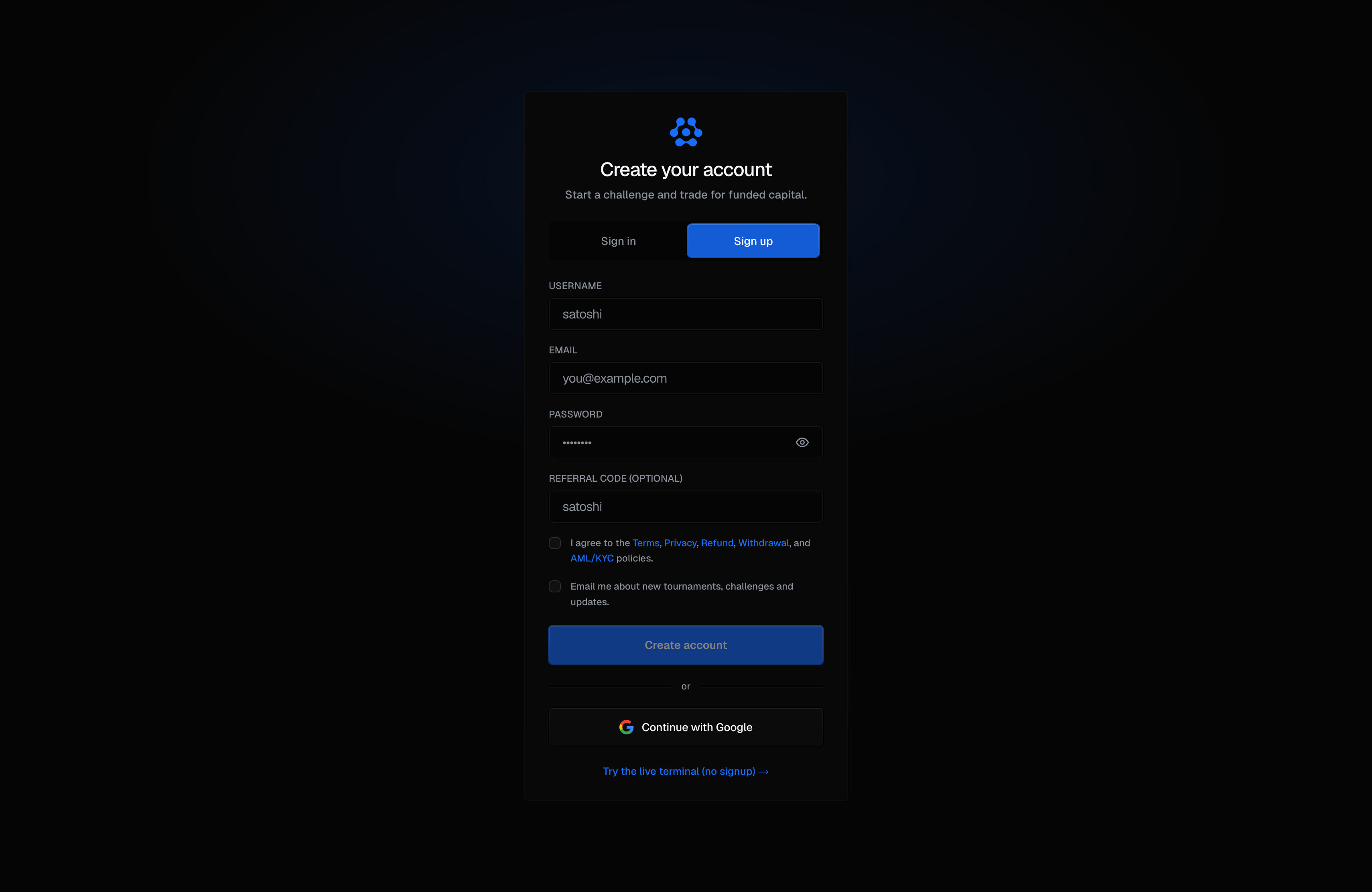
Sign up with email
Open the Sign up tab and fill in the form. Your username is your public handle, the name other traders see on your profile and the leaderboard, and you can change it later in Settings.
| Field | What it is |
|---|---|
| Username | Your public @handle: the name on your profile, the leaderboard, and anything you share. |
| Where your verification link and account emails are sent. | |
| Password | What you sign in with, unless you use Google or a passkey. A strength meter shows under it as you type. |
| Referral code (optional) | If someone referred you, their referral code or username. An unknown code is ignored and never blocks signup. Left empty, a trader's referral link you followed on this browser in the last 30 days is credited instead, on a Google sign-up too. See Referrals. |
| I agree to the Terms, Privacy, Refund, Withdrawal, and AML/KYC policies | Required. Create account stays disabled until you tick it, and your agreement is recorded with your account. Each policy name links to the policy. |
| Email me about new tournaments, challenges and updates | Optional, and unticked. Leaving it unticked never blocks signup. You can change it any time in Settings > Notifications > Email updates. |
The username, email and password are checked by the same rules whether you are signing up or changing them later, so nothing you choose now can fail a stricter check afterwards.
Username rules
| Rule | What it means |
|---|---|
| Length | 3 to 20 characters. |
| Characters | Letters, numbers, hyphens, and underscores only, and it must contain at least one letter or number, so a handle of punctuation alone is refused. |
| Uniqueness | Handles are unique regardless of case, so Trader and trader cannot both exist. Your own capitalisation is kept and displayed as you typed it. |
| Screening | Because the handle is public, it is screened for slurs and vulgarity. The screen applies when you choose or change a handle and never re-checks one you already hold. |
| Changing it | Up to 2 changes per 14 days, from Settings. |
Email rules
| Rule | What it means |
|---|---|
| A real address | It must be a valid address, and its domain must be one that can actually receive mail. An obvious typo in the domain is refused at signup. |
| A permanent provider | Throwaway and disposable-mailbox providers are not accepted. If yours is refused you will be asked for a permanent address; this is checked at signup only and never affects an account you already have. |
Password rules
| Rule | What it means |
|---|---|
| Length | At least 8 characters. Length is the requirement that matters most: a long passphrase beats a short complicated one. |
| Not an obvious one | Common and easily-guessed passwords are refused. |
| Not your own details | It cannot be your email address or your username. |
| Not a known-breached one | It is checked against public breach data. Your password never leaves our servers for this: only a short, non-reversible fragment of its hash is sent, which cannot be turned back into the password. |
Why a refusal at signup is not a judgement
Every one of these checks refuses the input rather than flagging you, and each message says what to change. If a check refuses something you believe is fine (a work email on an unusual domain, for example), it is worth telling support rather than working around it.
Or continue with Google
Where Google sign-in is enabled, a Continue with Google button sits under the form. A new Google sign-up passes one more step, One last thing: the same required policies checkbox and the same optional, unticked "Email me about new tournaments, challenges and updates." box, then Agree and continue. A Google account arrives already verified, so it skips the email-verification step below. If you do not see a Google button, that option is not enabled and you sign up with email.
Verify your email
After you sign up with email, we send a verification link to your address. Open it to verify your account. Until you do, the app shows a reminder with a Resend email button, so you can request a fresh link if the first one expired or went missing.
What waits for a verified email
Two things need a verified email: adding or changing a payout wallet, and starting the free trial. Everything else, including browsing and buying a challenge, works right away.
Add a passkey (optional)
A passkey lets you sign in without a password and approve payouts and wallet changes with your device (Face ID, a fingerprint, or a security key) instead of a code. It is optional, and you can add one any time from Settings; Securing your account explains how.
Related
- What is Perps Fund - the concept, before you sign up.
- Securing your account - two-factor, passkeys, and sessions.
- The free trial - start a real evaluation for free once your email is verified.
- Buying a challenge - the next step once you are in.