Placing an order
The order ticket: Market, Limit and the Pro menu, how a limit order fills, leverage, position sizing and the per-market caps, fees, take-profit and stop-loss, and what happens when you submit.
You place orders from the ticket on the right of the terminal. Every order is simulated against the live Hyperliquid price, with simulated fees and the same risk checks on every account. This page is the how-to for the ticket; the Terminal page covers the rest of the screen, and Trading rules and the Rules are the authoritative source for the limits.
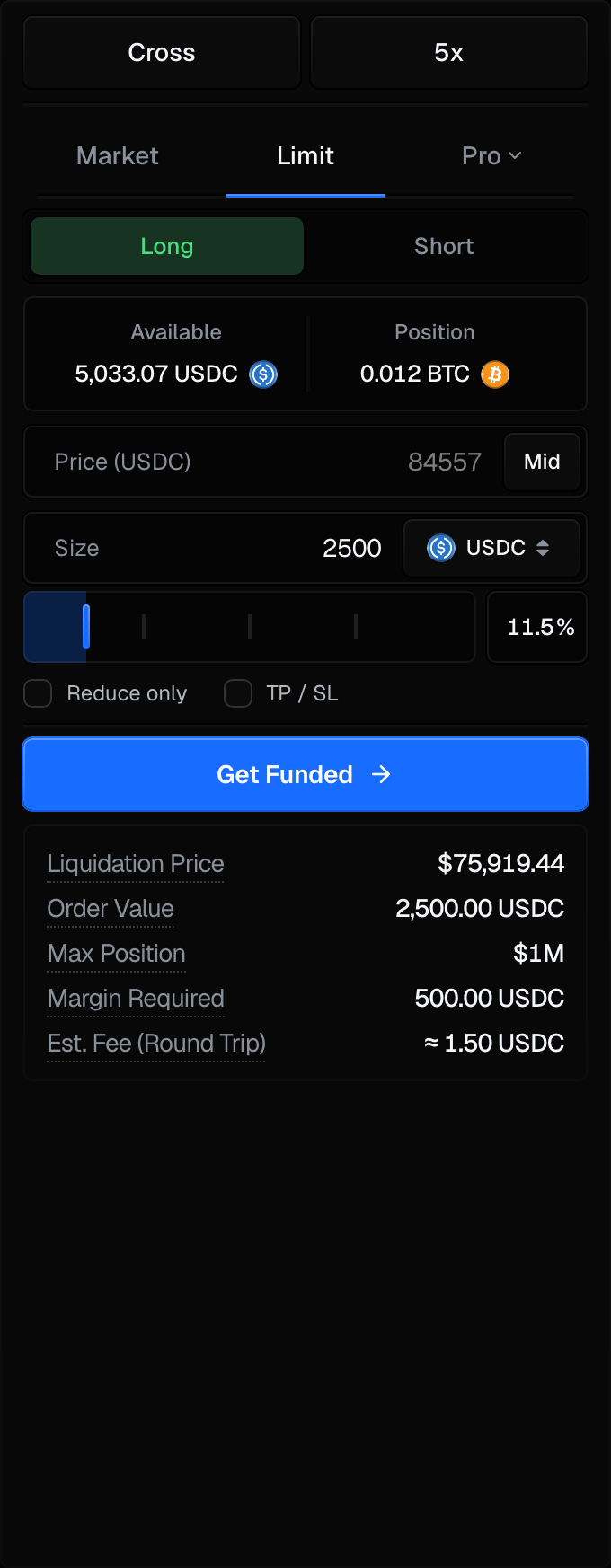
The order ticket
The ticket reads top to bottom:
| Control | What it does |
|---|---|
| Cross | The margin mode. Cross is the only mode: your whole account shares one margin pool and breaches on total equity, whichever position caused it. |
| Leverage | Shows your leverage and opens the leverage dialog. The most you can pick is the cap for the market you are on (see Leverage caps). |
| Market · Limit · Pro | The order type. Pro opens a menu of seven more order types; the tab then shows the one you picked. See Pro order types. |
| Long / Short | The side. |
| Available / Position | The margin you have free, and what you already hold in this market. |
| Price (USDC) | Limit orders only. Mid fills in the current price. |
| Size | In USDC or in the asset (switch the unit beside the field), with a slider for a percentage of what you have available. |
| Reduce only | The order can only shrink a position you hold, never open or flip one. |
| TP / SL | Attach a take-profit and a stop-loss to the position this order opens. Unavailable while Reduce only is ticked, because a reduce-only order closes a position and cannot carry its own exit levels. Shown on Market and Limit only: a Pro order cannot carry levels, so its form shows Reduce only alone. |
| Place button | Reads the side and market, for example Long BTC. |
| Cost card | The figures for this order, below. |
The cost card on a Market or Limit order:
| Row | What it means |
|---|---|
| Liquidation Price | The price at which this position's loss would pull your account equity down to its loss floor. It is your account breach shown as a price, not a separate per-trade liquidation. |
| Order Value | The full size of the position in dollars (size times price). |
| Max Position | The largest position this account may hold in this market, shortened (for example $1M or $250K; see Position sizing). |
| Margin Required | The part of your balance held to open the position. Smaller than the order value because of leverage. |
| Slippage | On a market order only. Est. is the expected difference between your average fill price and the mid price at this size; Max is the most you will accept. See Max slippage. |
| Est. Fee (Round Trip) | Both legs of the trade: the fee to open now (taker for a market order, maker for a limit order) plus a taker fee to close, both estimated at today's price. The close fee moves with the exit price, so the real total can be a little more or less. |
When the ticket will not place an order
If the account cannot open new positions, the button says why (Trading paused after a phase is passed, Account breached after a breach) and stays disabled. A passed account can still close what it holds. The button also reads Check your exit levels while a take-profit or stop-loss sits on the wrong side. On a market order the button is also disabled while the estimated slippage is above your max, with the reason on a red line under it (see Max slippage).
Market vs limit orders
- Market orders fill straight away at the current price. The fill uses a price no older than 2 seconds, and if that price is more than 0.5% away from the price on your screen when you pressed the button, the order is refused instead of filled at a worse level.
- Limit orders rest until the market price reaches your limit, then fill.
How a limit order fills:
- A limit order that rests fills at its own limit price when the market reaches it or gaps through it. If the price jumps past your limit in one move, you still get your limit, not the better price the market jumped to. This applies to reduce-only limits as well, including a take-profit placed as a limit.
- Only a limit that was already marketable when you placed it (a buy at or above the market, or a sell at or below it) fills at the market price, which is at or better than your limit.
This rule is dated in the rules changelog.
The marketable-limit warning
If you type a limit that is already through the market, the ticket warns you before you place it: the order will fill immediately at about the current price instead of resting. If what you meant was to buy as the price rises to a level, or sell as it falls to one, that is a stop: use a Conditional order under Pro.
For either type you choose a side, a size and your leverage, and you can attach a take-profit and a stop-loss.
Max slippage
A market order placed from the order panel is checked against Hyperliquid's live order book before it opens. The Slippage row shows the result as Est. 0.0122% / Max 8%:
- Est. is the estimated slippage for the size in the box: the average price that size would fill at on the live book, against the mid price. It is recalculated when you change the size and when the book moves. It reads Est. n/a in red when the book cannot fill the size at all.
- Max is your limit. It starts at 8% and is saved per account. Press it to change it: pick a preset (1%, 3%, 5%, 8%) or type a value from 0.1% to 30%, to one decimal place.
The estimate is emphasised once it reaches half of your max, and turns red above it.
If the estimate is above your max, the whole order is rejected. Nothing is partly filled. Before you press the button it is disabled, with a line under it such as Est. slippage 9.41% exceeds your 8% max. Reduce size or raise max. (or Order size exceeds available liquidity.). The check runs again on the server when the order arrives, so if the book moved in between you see Order rejected: slippage 8.32% exceeds your 8% max. and no position is opened.
Closing is never limited by max slippage
The limit applies only to market orders from the order panel that open or add to a position. A manual close, Close All, Reverse, a reduce-only order, and stop-loss and take-profit fills are not limited by it, so this setting can never stop you from leaving a position.
Max slippage decides whether a market order may open. It does not change the price an accepted order fills at, which is still the live price described under Market vs limit orders.
Leverage caps
The most leverage you can use on a market is the lower of two numbers: the firm's cap for that market and Hyperliquid's own maximum for it. The firm caps by asset tier:
| Asset tier | Max leverage |
|---|---|
| Majors - BTC, ETH | 5x |
| Stocks, indices, commodities, FX | 4x |
| Other crypto | 2x |
A single market can carry its own cap, so the leverage control in the ticket always shows the maximum for the market you are on. The cap is applied again on the server when the order is placed and again when a resting order fills, so it cannot be exceeded by editing a request. How leverage is enforced is in Position sizing and leverage.
Position sizing
Two separate ceilings apply to every order that opens or adds to a position, and the tighter one binds.
Against your account. A position can be worth up to your equity times the leverage you chose, and the margin across all your positions cannot exceed your equity.
| Limit | Value |
|---|---|
| Max position | up to equity × leverage |
| Total margin used | ≤ your equity |
| Minimum order | $10 notional |
Against the market. Each market also has an absolute cap on how large a position one account may hold in it. It is a property of the market, not of your account, so more leverage does not raise it:
| Market | Largest position per account |
|---|---|
| BTC, ETH | $1,000,000 |
| SOL | $300,000 |
| HYPE | $250,000 |
| Stocks, indices, commodities, FX | $1,000,000 |
| Other crypto with more than $100M of open interest | $150,000 |
| Every other market (including Pre-IPO) | 5% of its open interest, rounded to the nearest $1,000, between $50,000 and $100,000 |
| Any market whose open interest cannot be read | $50,000 |
Open interest is Hyperliquid's figure for the market, re-read over time, so the cap on a market that is not named in the table can move. The ticket's Max Position row shows the cap for the market you are on. An order that would take your position past it is refused with a message naming the cap and where the order would have taken you.
- A reduce-only order is never blocked by these caps: closing or reducing is always allowed.
- A resting limit order is checked when you place it and again when it fills. If it would break a cap at fill time, it keeps resting instead of filling.
The per-market caps took effect on the date shown in the rules changelog.
Fees
Fees are charged on notional (size times price).
| Fee | Rate | When |
|---|---|---|
| Taker | 0.045% | Opening with a market order, and every close: the position's × (Close position) button, the actions menu's Close All rows, the Positions table's Close heading, a triggered take-profit or stop-loss, and a reduce-only order. A reverse is a close and a market open, so it pays the taker fee twice. |
| Maker | 0.015% | Opening with a limit order from the ticket when it fills. |
Each Pro order type pays the rates listed on Pro order types. Funding is charged or paid on open positions over time; it appears in the Funding History tab of the terminal. The authoritative fee schedule is in Fees.
Take-profit and stop-loss
Tick TP / SL on the ticket to attach levels to the position the order opens. Each level can be typed as a
price ($) or as a return on your margin (%), and the ticket shows what each level would make or lose. You
can also add or change levels on an open position: the pencil in the position's TP/SL column opens
Adjust TP/SL. On a computer you can also drag the TP or SL line on the chart: the level is saved when
you let go, and a message confirms it, for example "Stop loss updated · $76,100". The entry, LIQ and DD
lines do not move. Dragging is not available on the phone; use Adjust TP/SL there.
- A take-profit closes the position when the market moves your way to your target.
- A stop-loss closes it when the market moves against you to your level.
On the ticket, before the order fills, a level has to sit on the right side of the price the order will fill at: for a long, the take-profit above it and the stop-loss below it; for a short, the other way round.
On an open position the rule is the current price, not your entry: for a long, the stop-loss below the current price and the take-profit above it; for a short, the other way round. So once a trade has moved your way you can move the stop to your entry or past it to lock in profit. A level at or past the current price is refused, because it would close the position at once. If no price is available at that moment, your entry is used instead. A stop-loss past your take-profit is refused too.
In Adjust TP/SL, a stop you have moved into profit shows its return as a gain, for example +2%, in the stop's box as on the line under it. In that box a plain number is a loss and a number starting with + is a gain, in dollars and in percent.
Adjust TP/SL checks this as you type and as the price moves: a level on the wrong side greys out the save button and the reason appears under the levels, before you save. A refused drag puts the line back where it was and says why. Once set, both levels are watched against the mark price, and a triggered level closes the position at market and pays the taker fee. The fill is taken at the price when the level triggers, which can differ a little from the level itself.
Choosing TP/SL from the Pro menu shows the levels on your position in the current market, with a button to set or edit them.
What happens on submit
- Your leverage is limited to the market's cap and a fresh server price is read.
- The order is checked against your account's loss limits and the position caps above.
- A market order opens the position (or adds to a position on the same side, averaging the entry) and the open fee is deducted. A limit order is saved and rests until the market reaches it (a marketable one fills on the next price check).
- An order on the opposite side of a position you hold closes the whole position first and books its profit or loss, then opens a new position of the order's full size the other way. To close only part of a position, use Reduce only (it can only shrink the position) or the position's × (Close position) button. To turn a position around at its own size in one step, use the row's reverse button; see Close all and reverse.
When an order fills, a receipt shows the fill's own price, size and fee. If several limit orders on the same market and side fill together, they share one receipt with the count, the size-weighted average price, the total size and the total fees. The receipt, and every other terminal message about one market (an order placed, cancelled or closed, a take-profit hit), carries that market's icon.
You are always filled on a fresh price
A fill uses a price no older than 2 seconds, so a stale quote is refused rather than filled. Leverage multiplies both your gains and your losses against the risk limits, so size it deliberately.
Related
- Pro order types - Scale, TWAP, Swarm, Conditional, Chase and Chase TWAP.
- The terminal - the chart, the console, settings and shortcuts.
- Trading rules - the limits: drawdown, breach, leverage and caps.
- How it works - the evaluation model, from buying to getting paid.