Settings
Your profile and privacy, security and sessions, payout wallets, identity verification, notifications, language, and API keys: every Settings tab and what each control does.
Settings is where you manage your account. It is split into six tabs, and only the tab you pick is shown:
| Tab | What is in it |
|---|---|
| Account | Your profile, privacy switches, timezone, theme and language, your purchase history, and a way to report a problem. |
| Security | Two-factor, your password, passkeys, signed-in devices, and the Danger zone (export or delete your data). |
| Payouts & wallets | The wallets a payout can be sent to. |
| Verification | Your identity-verification status. |
| Notifications | Which updates reach you in the app, as push, and by email. |
| Developer | Your API keys, for trading agents. |
On a wide screen the tabs sit in a rail on the left that stays in view, under the page's top bar, as you scroll; on a narrower one they run across the top. On a phone the same six tabs are labelled Account, Security, Payouts, Verify, Alerts and Developer.
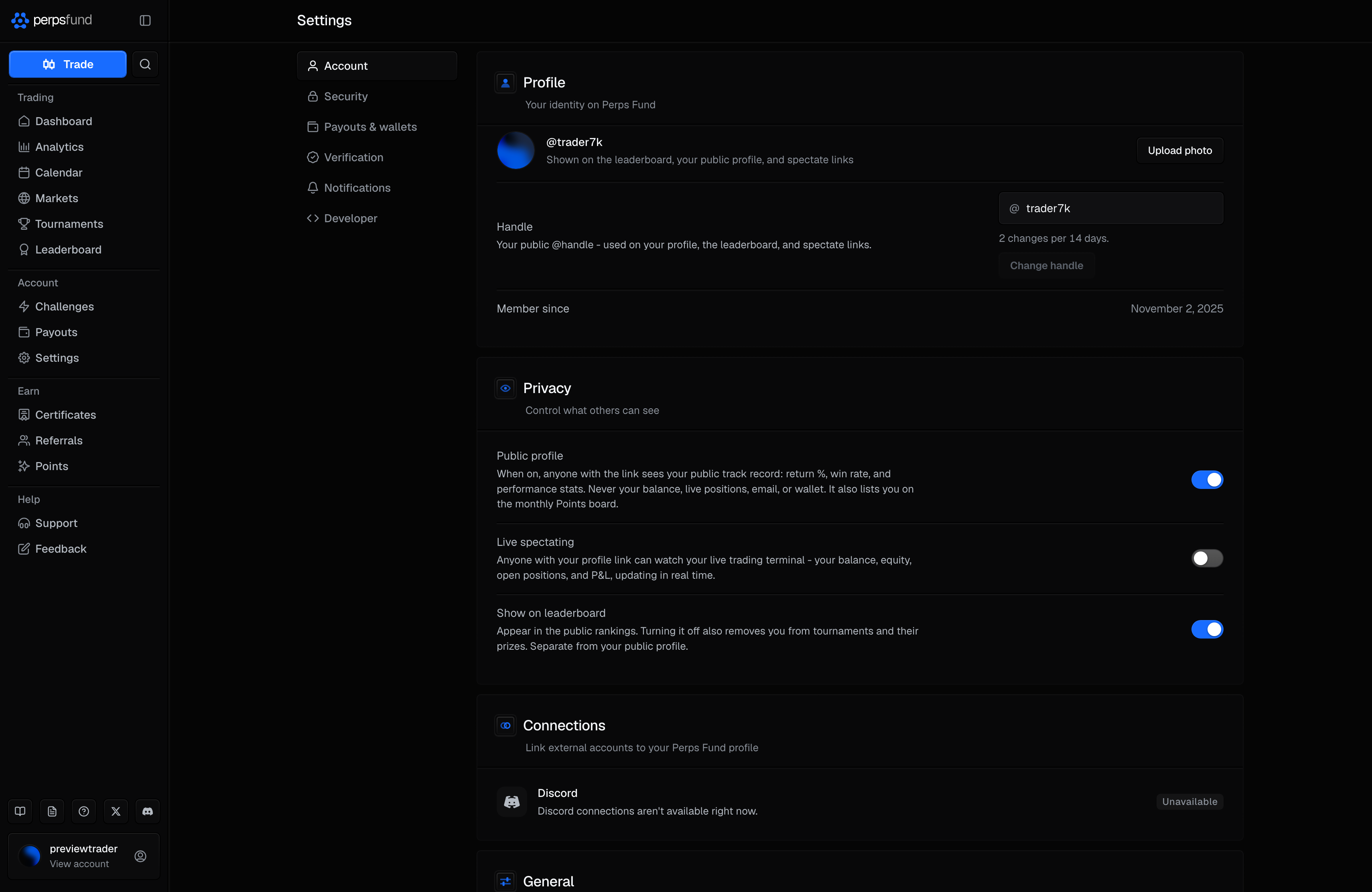
Account
If your email is not verified yet, the Account tab opens with a reminder and a Resend email button. Verifying unlocks payout wallets and the free trial.
Profile
| Control | What it does |
|---|---|
| Photo | Upload photo lets you pick an image (PNG, JPEG, WebP or GIF) and position it before you Save photo. Remove takes you back to the generated gradient avatar. The picture shows on the leaderboard, your public profile and spectate links. |
| Handle | Your public @handle. Type a new one, choose Change handle, then confirm. You can change it up to 2 times per 14 days, and it is checked by the same username rules as at signup. |
| Member since | The date you joined. |
There is no separate display name: your handle is the name other traders see.
Changing your handle breaks old links
Your old profile link, and any share or referral link built on your old handle, stop working. Your referral code itself stays the same.
Privacy
Three switches, each saved the moment you flip it.
| Switch | What it does |
|---|---|
| Public profile | When on, anyone with the link sees your public track record: return %, win rate and performance stats. Never your balance, live positions, email or wallet. It also lists you on the monthly Points board. Turning it off also turns off Live spectating and takes you off that board. |
| Live spectating | Lets anyone with your profile link watch your live terminal: balance, equity, open positions and P&L, in real time. It needs Public profile on. See Spectating. |
| Show on leaderboard | Puts you in the public rankings. Turning it off also removes you from tournament rankings, and so from their prizes. It is separate from your public profile. |
General
| Control | What it does |
|---|---|
| Timezone | Used to show your daily-loss reset in your local time. |
| Theme | Dark. Light and System are listed but cannot be selected. |
| Language | The app's language, in any of seven: English, Español, Français, Deutsch, Português (BR), Italiano, and Українська. |
Changing the language translates the navigation, sign-in and sign-up, and Settings. The rest of the app, including the dashboard, the terminal, payouts and checkout, stays in English, and so do these docs. Amounts, prices and dates stay in US format in every language. The choice applies in the browser you set it in, so set it again on another device.
Billing and Support
Billing lists your challenge purchases with their date, tier, amount and status. Support has Report a problem, which opens the same Feedback form as the rest of the app; see Getting help.
Security
The Security tab has three sections: Security, Account Access, and the Danger Zone at the end.
Two-factor and recovery codes
| Control | What it does |
|---|---|
| Two-factor authentication | Enable walks you through scanning a code with an authenticator app and entering the 6-digit code it shows. You then get a set of recovery codes, shown once. Disable needs a current two-factor or recovery code. |
| Recovery codes | Shown once two-factor is on, with how many unused codes you have left. Each works once if you lose your authenticator. Regenerate makes a new set and the old codes stop working. |
Account access
| Control | What it does |
|---|---|
| Password | Change asks for your current password and the new one twice. If you have two-factor or a passkey, it also asks for a fresh two-factor code or a passkey. Changing it signs out every other device; this one stays signed in. |
| Your sign-in email. It cannot be changed from Settings. | |
| Passkeys | Add a passkey registers Face ID, Touch ID or a security key. A passkey signs you in without a password and can approve payouts and wallet changes. You can rename or remove each one. |
| Active sessions | Every device signed in to your account, with its approximate location and last activity. Log out any one of them, or use Log out all other devices (it asks you to confirm). |
| Log out | Signs you out on this device. |
Turning on two-factor, or adding or removing a passkey, first asks you to confirm it is you: with a current two-factor or recovery code or a passkey if you have one, otherwise with your password. Securing your account explains how these fit together.
Danger zone
| Action | What it does |
|---|---|
| Export my data | Downloads your account, trade and payout history as a JSON file, with the usage records we keep about you: how you found us, the days you opened the app, the steps you reached (such as opening checkout), and the emails we sent you. |
| Delete account | Starts account deletion. You type your username, then confirm with a two-factor code if you have two-factor on, or your password if you do not. |
What deleting your account does
Deletion is anonymize-and-retain. You are signed out immediately, and your personal data is permanently anonymized after a 30-day grace period, during which an emailed link lets you cancel. Any certificate links you shared stop working, any leaderboard flair or profile frame you bought with points is removed, and the usage records we keep about you are deleted. Financial and compliance records are retained as legally required. Deletion is blocked while money is still in play: a challenge in progress, a funded account, a payout in progress, a balance to withdraw or redeem, or rewards still in their holding period must be resolved first.
Payouts & wallets
The wallets your USDC profit can be sent to. You add them here; the Payouts page is where you request a withdrawal.
| Column or control | What it does |
|---|---|
| Address, Label, Network | Each saved wallet, on one network: USDC on Ethereum. The network is required, because a send on the wrong network cannot be recovered. |
| Status | Whitelisted, or Locked with the hours left. A new wallet is held for 48h before it can receive a payout. |
| Add wallet | Opens Add payout wallet: network, destination address, an optional label, and a fresh two-factor code or a passkey. You can keep up to 3 wallets. |
| Remove | Removing a wallet also needs a fresh two-factor code or a passkey. |
To add or remove a wallet you need two-factor or a passkey on your account, and a verified email. Without a factor, Add wallet is locked and points you to the Security tab.
On desktop, if your browser has a wallet extension, Add payout wallet can also Link the wallet: you sign a message with it, and the saved wallet then carries a mark reading "Ownership proven by wallet signature". Linking is available for Ethereum addresses only. It is optional: it proves the address is yours, and it skips none of the steps above, including the hold.
Verification
Identity verification is needed once your lifetime unverified payouts would cross $1,000. You can trade, and take payouts below that line, before you verify; you verify once, before crossing it. The full rule is in the Rules.
| Status | What you see |
|---|---|
| Not verified | Verify identity opens the steps. |
| Pending review | View status shows where your submission is. |
| Verified | Nothing more to do. |
| Rejected | Try again lets you resubmit. |
Verification is done by email: you send a government photo ID (all four corners in frame) and a selfie holding that ID to the address the steps show, and the team reviews them by hand. You can close the window while you wait; the status updates here.
Notifications
Each kind of update has its own In-app and Push switch, and the two are independent.
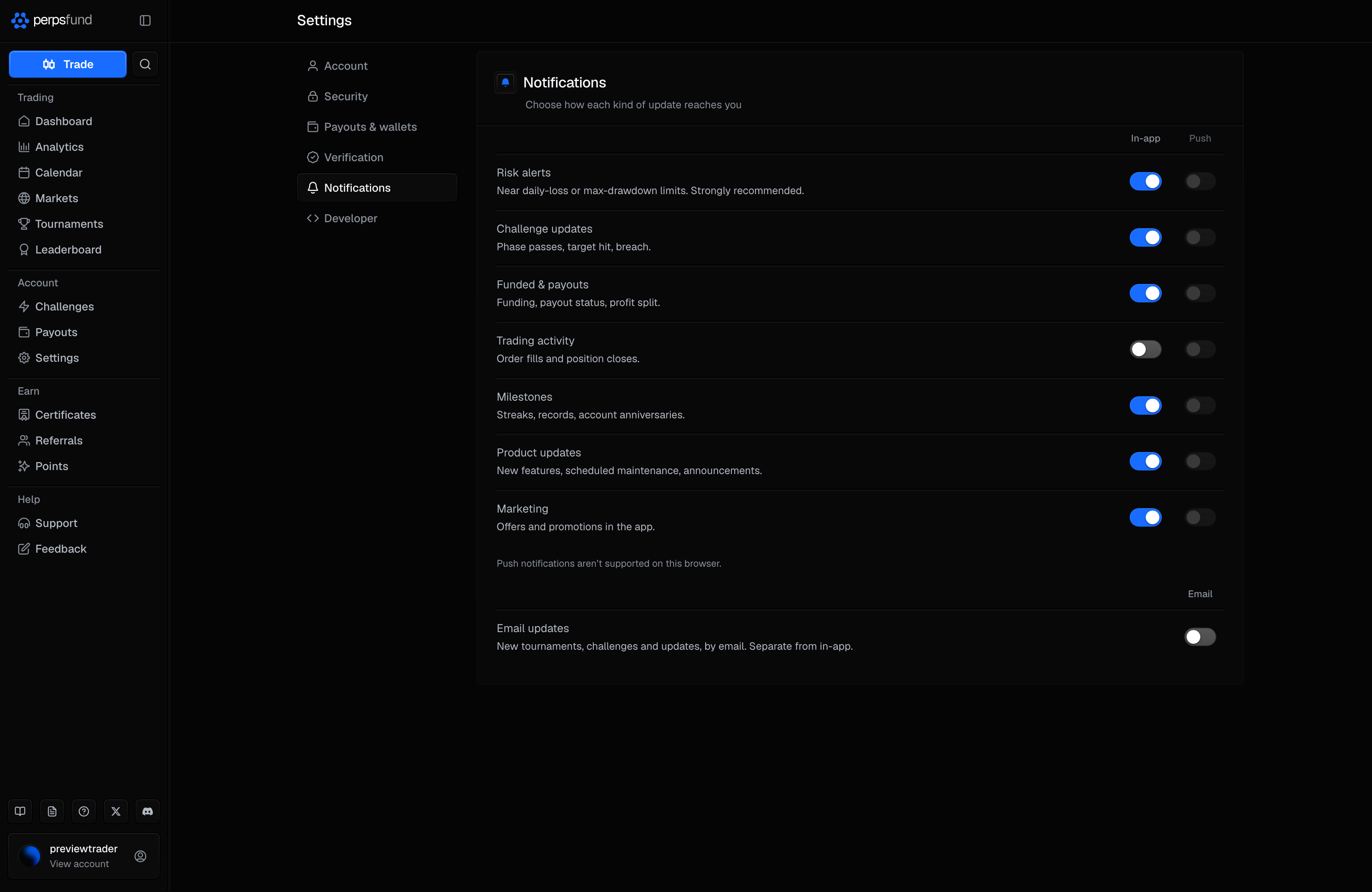
| Category | Covers |
|---|---|
| Risk alerts | Near your daily-loss or max-drawdown limits. |
| Challenge updates | Phase passes, target hit, breach. |
| Funded & payouts | Funding, payout status, profit split. |
| Trading activity | Order fills and position closes. |
| Milestones | Streaks, records, account anniversaries. |
| Product updates | New features, scheduled maintenance, announcements. |
| Marketing | Offers and promotions in the app. |
In-app notifications appear under the bell. Security notices (a new sign-in, a password change, a wallet or two-factor change) always reach you in the app, whatever these switches say.
Push is set up per device. Choose Enable push on each phone or computer you want alerts on; until you do, the Push column is greyed out. If your browser has blocked notifications for the site, allow them in the browser's settings first. On an iPhone or iPad, push works only after you add Perps Fund to your Home Screen (Share, then Add to Home Screen) and open it from there. Where your browser supports installing, Install app in the phone's More menu walks you through it.
Email updates
Below the grid, Email updates is a separate switch: new tournaments, challenges and updates, by email. It is off unless you ticked the box at signup or turn it on here. It is not the same as the in-app Marketing row above, which covers the app only. Account, verification, payout and security emails are sent whatever this switch says.
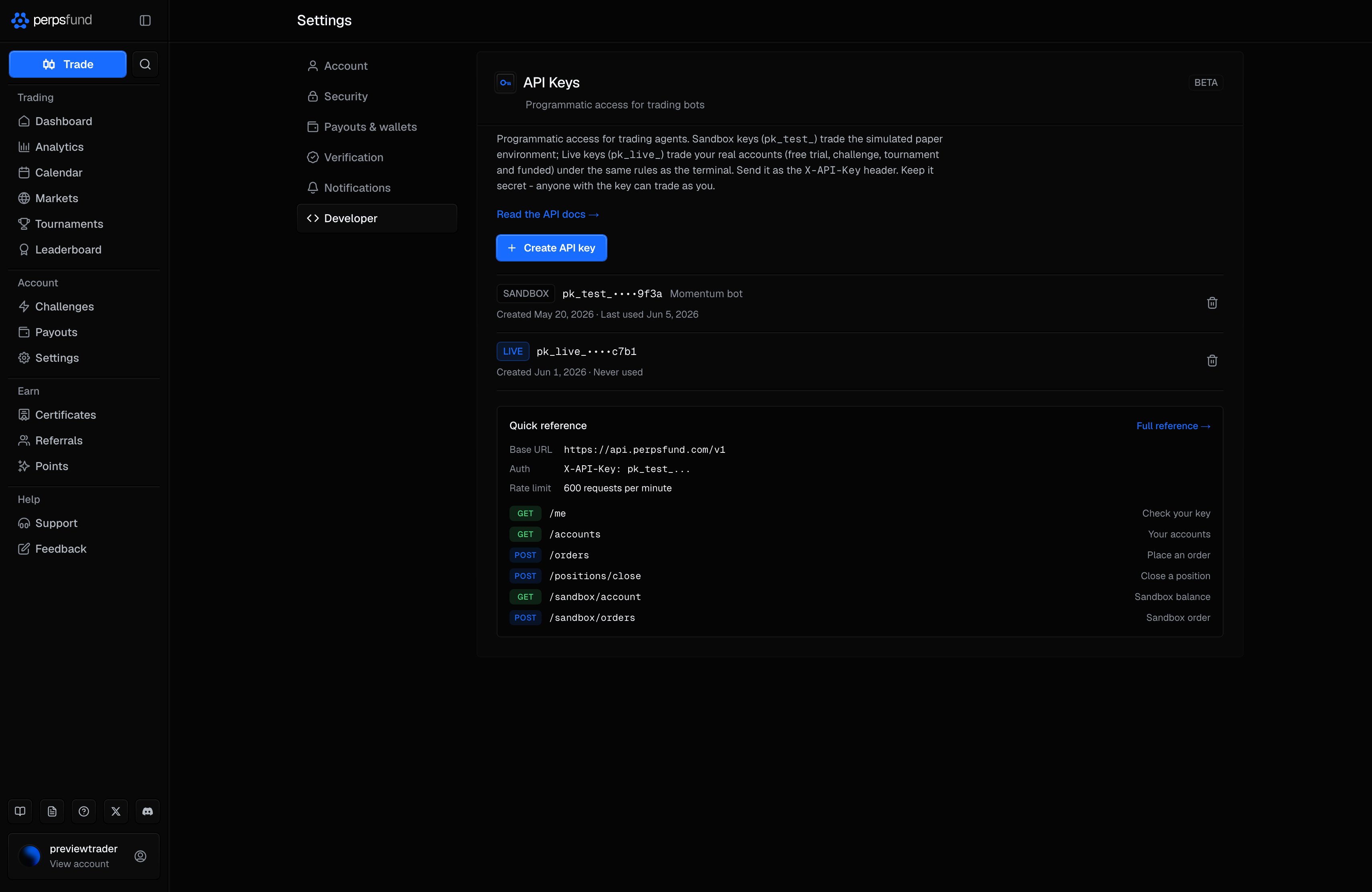
Developer (API keys)
The Developer tab holds your keys for the Perps Fund API. API access is a controlled beta: until your account is in it, the tab reads "You're not in the API beta yet" and has no create button. Any key you already hold is still listed, so you can revoke it.
| Control | What it does |
|---|---|
| Create API key | Pick Sandbox or Live, add an optional label, then Generate key. A sandbox key (pk_test_) trades a simulated account; a live key (pk_live_) trades your real accounts. |
| The new key | Shown once, right after you generate it. Copy it then: only a hash is stored, so it can never be shown again. |
| Revoke key | Stops that key at once. It does not create a replacement: an agent using it disconnects until you create a new key yourself. |
You can hold up to 20 active keys; revoke one to make room.
Related
- Securing your account - two-factor, passkeys, and sessions in more depth.
- Payouts - request a withdrawal to a wallet you whitelist here.
- API - what an API key can do.
- The Rules - the authoritative payout, identity, and account rules.