Platform search
One search over settings, rules, FAQ, docs, pages and actions (and markets), opened with Cmd/Ctrl + K or the dashboard's search bar - plus the same panel scoped to the docs, to the FAQ, and to each of the four reading pages.
Platform search finds a setting, a rule, an FAQ answer, a docs page or an app page from one box, and takes you straight to it. It is for signed-in use on a desktop-width window.
The docs, the FAQ and the four reading pages open the same panel, narrowed to their own material - see Searching the docs, the FAQ and the reading pages below. All of those are public: you do not need to be signed in.
Opening it
- Press
Cmd+Kon a Mac, orCtrl+Kelsewhere, on any signed-in page, including the terminal. The same keys close it. - On the dashboard, the search bar in the header (at the left of its controls, before Withdrawal) opens the same panel. It was a magnifier between New Challenge and the bell until 29 September 2026.
- In the sidebar, the magnifier to the right of Trade opens it too. When you collapse the sidebar it sits under Trade instead. The narrow sidebar on smaller screens has no room for it, so use the keys there.
- On the docs, the same magnifier sits at the top of the page whenever the sidebar is too narrow to show. It is the same button as the sidebar's, and it opens the docs panel.
It does not open on top of another open dialog, and it is not on the phone: the keys do nothing on a narrow window, and the bar and magnifiers that open it are on desktop only.
Searching the docs, the FAQ and the reading pages
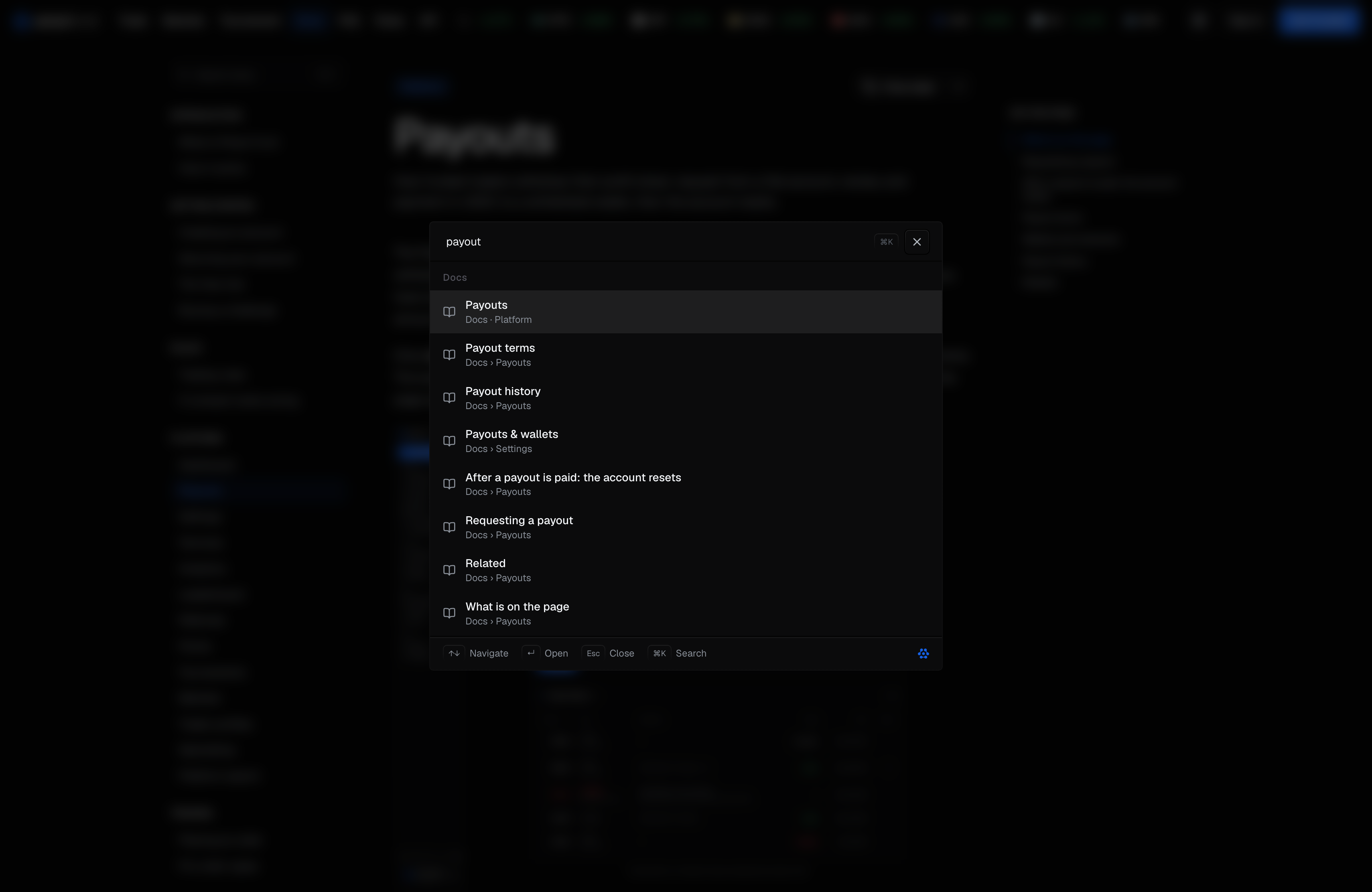
The docs, the FAQ, the Rules and the three legal pages each have their own search box, and it opens this same panel - the same frame, the same keys, the same rows - narrowed to that page's own material.
| Page | The box | What the panel searches |
|---|---|---|
| Docs | In the left sidebar, above the page list, on a wide window. On a narrower one the sidebar is hidden and a magnifier sits at the top of the page instead. | Every docs page, every heading, and the text of the pages. |
| FAQ | In the header at the top of the page, on a wide window. On a phone it is hidden and the Topics sheet carries the search instead. | Every question, its topic, and the text of the answers. |
| Rules, Terms, Privacy, Risk disclaimer | In the header at the top of the page, directly under the title, on a wide window. On a phone it is hidden and the Contents sheet carries the page's own list instead. | That page's own numbered sections. Not the other three reading pages, and not the docs. |
Cmd/Ctrl + K opens the scoped panel on those pages too. Each box shows the ⌘K hint, and clicking it opens
the panel exactly as the keys do. The heading above the results names what was searched - Docs, FAQ or
Sections - so it is clear the panel is not looking at the whole platform. With the box empty it lists that
page's own material, so it opens on somewhere to go.
On the four reading pages a result takes you to that section of the page you are already on. It does not hide the rest of the page. Nothing on Rules, Terms, Privacy or the Risk disclaimer narrows as you type: a legal page that showed only the clauses matching a search would be telling you it says less than it does.
No scoped panel reaches settings, markets or the app's pages. All of these pages are public, and those results lead behind the sign-in, so a reader who is not signed in would be given rows they cannot follow.
On a phone, both pages search from the same place their contents list lives: tap Contents on the docs
or Topics on the FAQ, and type in the box at the top. The results replace the list while you type, and
choosing one closes the panel and takes you to the page or opens the answer. It works the same way on both
pages. The panel itself is a keyboard instrument - arrow keys, Enter, Esc - so it is not offered at phone
width.
Since 22 September 2026 the same Contents sheet also opens on Rules, Terms, Privacy and the Risk disclaimer, which now share the docs layout. There it carries the two lists those pages show on a wide window - the other reading pages first, then this page's own numbered sections - and it has no search box. On a wide window those four pages do have one, in the header directly under the title, and it opens the panel over that page's own sections; the panel is a keyboard instrument, so it is not offered at phone width and the sheet's list stands in its place. The search in the top bar reaches all four pages and everything else, on a phone as on a wide window.
The list of other reading pages in that sheet, and in the left rail on a wide window, is four entries from the same date: Rules, Terms, Privacy and the Risk disclaimer. The FAQ and the docs were in it and are not any more, because the bar at the top of the page already reaches both.
Since 21 September 2026 that panel rises from the bottom of the screen instead of sliding in from the right,
which is the same shape the market picker and the account switcher already use in the terminal: it has a grab
handle at the top, and it can be swiped down as well as closed with the backdrop or Esc. Nothing about what
it holds changed - the same box, the same results, the same list of pages or topics under it - and the search
travels with it, so the phone keeps every way of searching it had.
The FAQ used to narrow the page as you typed in its header box. It no longer does: search on both pages takes you to an answer and leaves the rest of the page where it was.
What it searches
| Group | What you find | Where a result takes you | | --- | --- | --- |
| Settings | The sections of Settings and the rows in them. | That section, on the right Settings tab. | | Rules | Every section of the Rules. | That section. | | FAQ | Every question on the FAQ. | That question, opened. | | Docs | Every docs page and its headings. | The page, or the heading, on docs.perpsfund.com. | | Pages | The app's pages, plus the terminal, the rules, the docs and the FAQ. | The page. | | Actions | New challenge, Request payout and Archive an account. | The page where you do it. | | Markets | Every market you can trade. | The terminal on that market. |
One group is never in this panel: Sections. It is the group the four reading pages' own boxes show, and it is built by the page you are standing on rather than by the index this table describes - which is why a search from the top bar finds the Rules by section and the legal pages as whole pages, while the box on Terms finds that page's clauses one by one.
Markets are not offered inside the terminal itself, where Cmd/Ctrl + / opens the terminal's own market
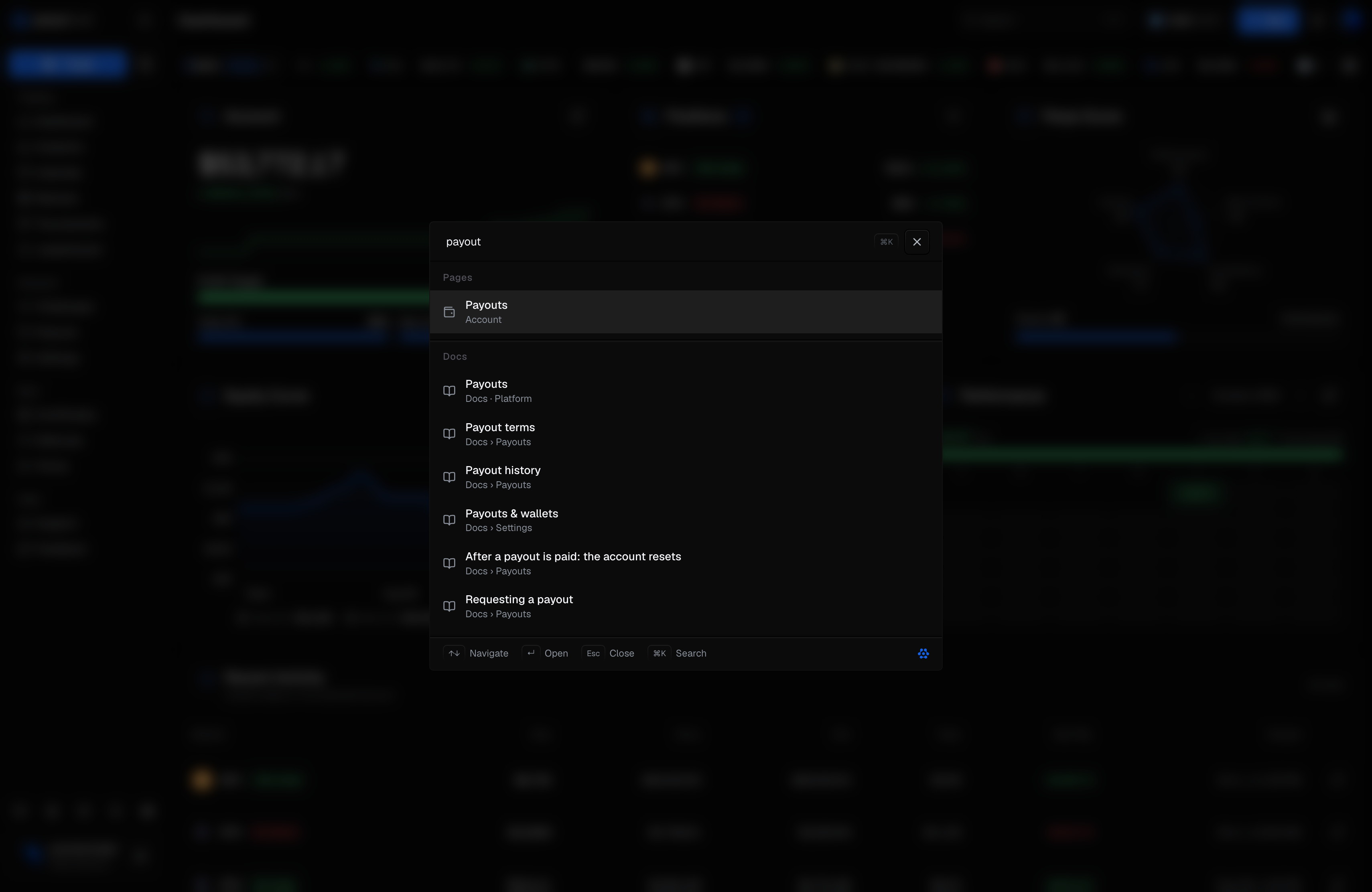
selector. With the box empty, the panel lists Pages and Actions, so it opens on somewhere to go.
How results are ordered
What you type is matched as one phrase, ignoring case. Within each group:
- A title that starts with what you typed comes first.
- Then a title that contains it.
- Then a match in the line under the title.
There is no fuzzy matching, so a typo finds nothing. Each group shows up to 6 results (the docs, FAQ and reading-page panels show up to 12, because one group has the panel to itself), and the groups are ordered by their best result. When a page and a doc match equally well, the page comes first: typing "payout" leads with the Payouts page, not the Payouts doc. Each result shows its title and one line of context, such as the docs page or the FAQ category it belongs to.
Keys
| Key | Action |
|---|---|
↑ ↓ | Move through the results |
Enter | Open the highlighted result |
Esc | Close the panel (clicking outside it also closes it) |
Cmd/Ctrl + K | Close the panel |
Every scoped panel - the docs, the FAQ and the four reading pages - takes the same keys. One result at a time is highlighted - the one Enter opens -
and the arrow keys move that highlight. Nothing else on the list is marked.
Closing the panel puts the keyboard back on the box you opened it from, so Tab carries on from there. That box
shows a focus ring when you reached it with the keyboard, and none when you opened the panel with the mouse.
When nothing comes back
- No matches. The panel says No results and Nothing matches followed by what you typed.
- Loading. The first time you open it on a page it loads its index, showing a loader if that takes a moment. After that it opens straight to results.
- Failure. If the index cannot load, the panel says Search could not load its index. Close and reopen to try again. Reopening tries again. If only the market list fails to load, the Markets group is missing and everything else still works.
Search is in English only for now, whatever language you have chosen.
Related
- Settings - what each setting does.
- The terminal - the terminal's keyboard shortcuts.
- The Dashboard - where the search bar sits.
- The FAQ - the questions the FAQ panel searches.